

Where did you get these EKH03s? The EKH03-03 is a pre-release unit which we did not sell on Mouser.
You may be able to still force the upgrade, but you will need change the BCF manually after upgrade. Before doing that, can you check df -h to make sure the device has 32MB of flash?

I’m going to say all this probably isn’t worth it, but upgrading the device so you have access to something which can be used as a sniffer is going to be very helpful when diagnosing further sleep related issues. So instructions for upgrading this pre-release device are as below.
We really would like to see a sniffer capture of the WNM setup sequence.
That’s good, you have a version with 32MB of flash. Force the update with
sysupgrade -F -n -v /tmp/openwrt-morse-2.11.12-morsemicro-ekh03-v4-squashfs-sysupgrade.bin
I would throw away your config and start fresh - 2.2 is quite outdated. That’s the -n flag.
Login to the UI, navigate to System → Administration → SSH Access page and make sure SSH access is enabled.
You will then need to extract https://github.com/MorseMicro/bcf_binaries/releases/download/v1.15.3/morsemicro-bcf-rel_1_15_3_2025_Apr_16.tar and scp the bcf_mf08551.bin to your device’s /lib/firmware/morse/. While an older version of the BCF, it will still be compatible with the firmware used in the 2.11 release.
The radio won’t work straight away, you will need to then edit /etc/config/wireless and add
option bcf 'bcf_mf08551.bin' to the radio configuration of option type morse.
Run reload_config to apply the changes.
As an alternative to what has now become a side-quest, @michael.mccandless will describe DTIM sleep to you, which should be possible to configure on the AsiaRF hardware
Would be a very minor change code wise, and a supported on your AsiaRF AP with the configured uplink. Setting it to a higher DTIM interval eg. 100 (255 should be max from memory since it’s an octet) should net substantial power savings since the settings you’ve mentioned before would have a DTIM snooze of about 307ms and DTIM 100 would bump that to about 10.24s.
On the device end you just need to make sure power save is enabled, which it should be by default but a few bytes worth of instructions for sanity’s sake during testing is worth it.
For DTIM testing just comment out the WNM entry and exit, since it would just be additional TX that isn’t doing much with the AP not supporting it.
This of course would be just for evaluating to see if our hardware’s power save is within or approaching your power budget requirements. WNM is a good power optimization given the traffic patterns of your device, but at this point it’s probably more important getting the ball rolling and unblock your testing. We can continue to drill into WNM if you’re happy with the results
I was able to update the firmware following the instructions @ajudge sent.
However, I still do not see any wnm-related features/settings !!
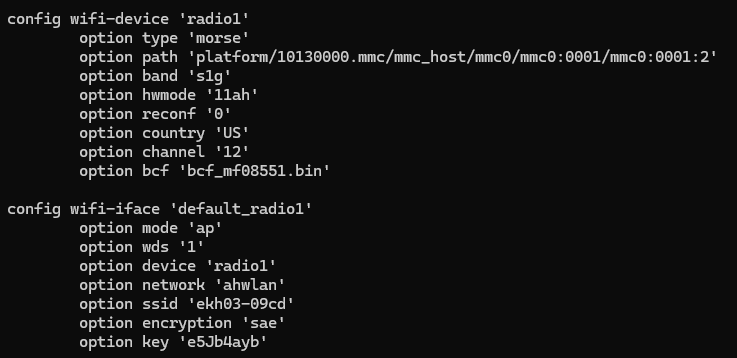

That’s because those commands aren’t checking for capability. Out of box uci will show the minimum configuration it needs to change the default. Instead see the strings command on hostapd_s1g above.
It should default to being on if it is not in your uci config, but to be sure run
uci set wireless.default_radio1.wnm_sleep_mode='1'
reload_config
And then collect a sniffer capture so we can verify the negotiation is working.
I’m trying to sniff the connection by wireshark, but im having issue connecting to the AP.
I can easily ssh into the AP, but when I follow your sshdump instructions , it says :

I have tried all my keys, none worked. I also tried without keys at all, still not working.
I removed the AP from the knownhosts lists and readded it by sshing from my machine terminal, but wire shark still does not work.
That error reads as if your ssh keys aren’t installed onto the EKH03. I wouldn’t bother with this myself though. Set a password on the device and use password auth in sshdump. Wireshark doesn’t like using un-authed ssh.
Remember the sniffer needs to be a third device in the mix, configured in Monitor mode, not AP. Otherwise we won’t see all the frames on the air.
WNM_test.zip (13.6 KB)
This is the sniff capture of 3 reports, 1 minute apart
What does that tell you?
And what should we look for?
Unfortunately your sniffer is not configured on the same channel as the AP. On the AP run morse_cli -i wlan0 channel to verify the primary channel. eg
# morse_cli -i wlan0 channel
Full Channel Information
        Operating Frequency: 918000 kHz
        Operating BW: 4 MHz
        Primary BW: 2 MHz
        Primary Channel Index: 1
Then set your sniffer to the same configuration.
For your benefit, I’ve set up our MM6108-EKH05 as a device which uses WNM sleep using a slightly modified version of our wnm sleep example - one which I can trigger transmission on a button press. I’ve collected a wireshark trace you can use for reference, and a power profiler trace of our HaLow power rail (VDDIO + VBAT). This is by no means super accurate - I just don’t have a Joulescope available to me at this time.
wnm-sleep.pcapng (104.9 KB)
wnm-sleep.ppk2 (4.2 MB)
The first spike of current you will see in my traces is boot and scanning

This correlates somewhere around frames 30-50 of the wireshark trace. There are many probe requests that won’t be shown due to the sniffer focusing on a single channel. This is what was causing your initial long connection time and why you would want wnm sleep. Do this once on first boot and then set the radio quiet.
The second current spike is the association and authentication sequence. On my wireshark capture this starts at frame 180 through to ~280.

The captures you care about for wnm sleep are the third current spike in my power profile capture.

This corresponds to the data transmissions between frames 390 and 464. The important frames we are looking for to verify that wnm sleep is functioning as expected is the WNM Sleep Exit - frames 390 and 395, and the WNM Sleep Entry, frames 460 and 463.
If those action frames aren’t present, the device is not sending the WNM sleep request frames, or the AP is not sending the WNM sleep response frames.
Outside of the transmissions, when our radio is in a suitable sleep mode, current consumption will typically sit ~40uA. Mine is showing an average of 16uA - expect some error here due to the Power Profiler.

You can also check to make sure your AP is configured to support WNM sleep by checking the Extended Capabilities of the Association Response frame (in my capture, inspect frame 243). WNM Sleep mode must be supported.

If you cannot configure WNM sleep on your AP, you may need to consider DTIM sleep - which will result in more frequent wake ups, but doesn’t require the client to send WNM sleep request frames - which below a certain wake interval can actually save power. This is actually on by default, you just need to tune the DTIM interval on the AP to suit your requirements.
If you collect all the above information, and are still seeing high current consumption, then we need to investigate the components around our radio. Is the host micro-controller (included on the Vantron module) correctly configured to enter suitable deep sleep state during idle? Is it configured correctly for tickless idle?
Thank you very much @ajudge
I reran the same test. Please check the following connections (1 minute apart)
The WNM frames (association request and response) are 104 and 106.
Check 113 and 116 , then 302 and 307 . . . Do these look like wnm entry and exit?
What are the exact flags/bytes that we are looking for ?
WNM_test.pcapng (276.2 KB)
Those do look like the action frames, I’m happy enough seeing that they are there - plus the WNM supported flag in the beacon response - to assume that wnm sleep is functioning as expected.
Inspecting the frames further requires decryption using the temporal keys generated by the AP. Run cat /sys/kernel/debug/ieee80211/phy*/keys/*/key on the AP to get them out. Then install them into wireshark following instructions at HowToDecrypt802.11 - Wireshark Wiki - use the “Key Type” of tk. As the name suggests, these keys are temporal, so they will change when the device reassociates.
Given the information shared, it has to be that the host isn’t sleeping. By “host” here I do mean the STM32 microcontroller packaged in the Vantron module, and “sleeping” as it not entering Stop2 mode. If you collect current traces of VDD_FEM, VCC_WIFI, and VCC - you will find the power being consumed at the VCC input, pin 8.
Part of the reason for this, is that on this microcontroller, the SDIO peripheral is disabled in Stop 2 mode. You can make this mostly work, but the chip may not wake the host in a timely manner. This would only be an issue if you have not entered WNM sleep and are waiting for a packet, and will exhibit as a delay handling received packets.
You need to enable tickless idle. Do this by defining configUSE_TICKLESS_IDLE=1 and then you add some veto’s around some critical sections to the hal layer for your platform. An example of such a change would look something like this:
diff --git a/framework/src/platforms/mm-ekh08-u575-sdio/mm_shims/mm_hal_common.h b/framework/src/platforms/mm-ekh08-u575-sdio/mm_shims/mm_hal_common.h
index 5b0716183c..9469b578cc 100644
--- a/framework/src/platforms/mm-ekh08-u575-sdio/mm_shims/mm_hal_common.h
+++ b/framework/src/platforms/mm-ekh08-u575-sdio/mm_shims/mm_hal_common.h
@@ -20,6 +20,8 @@ enum mmhal_deep_sleep_veto_id
 {
     /** UART HAL deep sleep veto. */
     MMHAL_VETO_ID_HAL_UART = MMHAL_VETO_ID_HAL_MIN,
+    /** SDIO HAL deep sleep veto. */
+    MMHAL_VETO_ID_HAL_SDIO,
 };
diff --git a/framework/src/platforms/mm-ekh08-u575-sdio/mm_shims/mmhal_wlan.c b/framework/src/platforms/mm-ekh08-u575-sdio/mm_shims/mmhal_wlan.c
index cf1706b3b9..a8e402f2d2 100644
--- a/framework/src/platforms/mm-ekh08-u575-sdio/mm_shims/mmhal_wlan.c
+++ b/framework/src/platforms/mm-ekh08-u575-sdio/mm_shims/mmhal_wlan.c
@@ -462,7 +462,9 @@ int mmhal_wlan_sdio_cmd53_write(const struct mmhal_wlan_sdio_cmd53_write_args *a
         SDMMC_IT_DATAEND | SDMMC_IT_DTIMEOUT | SDMMC_IT_TXUNDERR | SDMMC_FLAG_DCRCFAIL);
     ret = 0;

+    mmhal_set_deep_sleep_veto(MMHAL_VETO_ID_HAL_SDIO);
     mmosal_semb_wait(dma_semb_handle, 750);
+    mmhal_clear_deep_sleep_veto(MMHAL_VETO_ID_HAL_SDIO);

     __SDMMC_DISABLE_IT(WLAN_SDMMC, SDMMC_STATIC_DATA_FLAGS);
     __SDMMC_CLEAR_FLAG(WLAN_SDMMC, SDMMC_STATIC_DATA_FLAGS);
@@ -550,7 +552,9 @@ int mmhal_wlan_sdio_cmd53_read(const struct mmhal_wlan_sdio_cmd53_read_args *arg

     __SDMMC_ENABLE_IT(WLAN_SDMMC,
                       SDMMC_IT_DCRCFAIL | SDMMC_IT_DTIMEOUT | SDMMC_IT_RXOVERR | SDMMC_IT_DATAEND);
+    mmhal_set_deep_sleep_veto(MMHAL_VETO_ID_HAL_SDIO);
     (void)mmosal_semb_wait(dma_semb_handle, 1000);
+    mmhal_clear_deep_sleep_veto(MMHAL_VETO_ID_HAL_SDIO);

     __SDMMC_DISABLE_IT(WLAN_SDMMC, SDMMC_STATIC_DATA_FLAGS);
     __SDMMC_CLEAR_FLAG(WLAN_SDMMC, SDMMC_STATIC_DATA_FLAGS);